View seminar slides online (working codepens!)
So, what actually is the css scroll function?
The CSS scroll() function works within CSS to transform a regular animation into a scroll-driven animation. We can use this function to create animation effects, including parallax, scroll progress bars, and image fade-ins.
It works by telling the browser: run this animation when the user scrolls the page.
Why should we use it?
Enhanced User Experience
By tying the animation to a user’s scroll position, it can enhance the user’s experience by giving them a sense of control. It feels interactive! As they scroll down the page, they are the ones making things happen.
No JavaScript!
Until recently, these kinds of effects were only achievable with the use of JavaScript. So by using only CSS, we can make our websites more reliable and load faster.
Use Cases
Parallax


One of the animation effects that the scroll function can be used to create is Parallax.
The parallax effect is an illusion created when background and foreground content move at different speeds relative to one another. When the background is moving more slowly, it tricks our eyes into thinking it is further away; this gives the page a sense of depth as there is a clear divide between the background and foreground.
Scroll Progress Bar


See scroll progress bar in action
The scroll progress bar is a horizontal bar that sticks to the top of the screen, filling up across the width as you scroll down the page. It is used to show the user how far down the page they are.
It is useful for long chunks of text, like an article or even a book. By giving our users a visual aid, we are providing them with an enhanced user experience and encouraging them to actually read to the bottom of the page.
Fade-in images
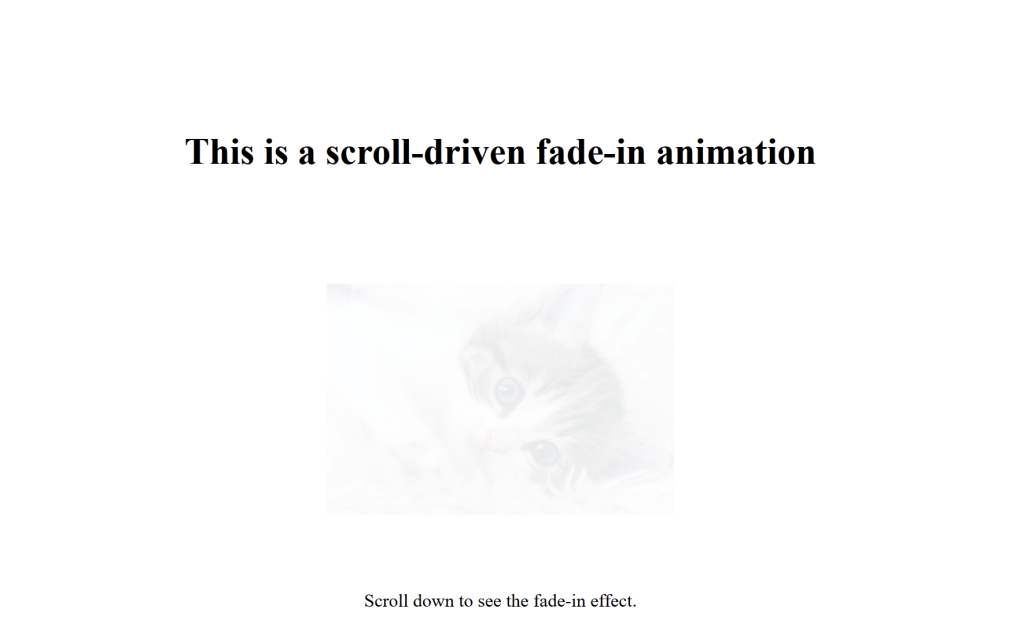

See the fade-in animation in action
More commonly used is the image fade-in, where the image fades in as you scroll down the page. This can help to draw attention to the image and make it feel more interactive for the user.
How does it actually work?
We can create scroll-driven animations by changing the animation timeline to scroll(), which tells the browser to play them as the user scrolls rather than over time.
A basic CSS animation consists of keyframes to define what changes in the animation, and animation properties to define when and how the animation takes place. The animation is tied to the keyframes with a unique name (‘fade-in‘ in the example below).
So if a basic CSS fade-in animation looked like this:
@keyframes fade-in {
from { opacity: 0; }
to { opacity: 1; }
}
img {
animation: fade-in 4s forwards;
}
A CSS scroll-driven fade-in animation would look like this:
@keyframes fade-in {
from { opacity: 0; }
to { opacity: 1; }
}
img {
animation: fade-in;
animation-timeline: scroll();
}
body {
margin-bottom: 200px;
}The key differences in the code:
- Addition of animation-timeline property
- Most animation properties other than the animation name become redundant and can be removed (some exceptions)
- Additional margin to ensure scrollability (only if the page doesn’t have enough content yet to scroll)
How can we use it to create Parallax?
To create the parallax effect shown earlier, we need to create a separate background element. This can be done either with an empty <div> element in our HTML or with a pseudo-element in our CSS. To keep it more semantic and reduce presentational markup, it is better to keep this in the CSS; either will work.
We don’t want to just apply the background to the body on this occasion, as the body is not an element, it will not behave as we want it to.
We need to apply a few properties to this new element to ensure it acts as a background:
    position: absolute; /*Removes from normal flow*/
    inset: 0; /*Starts at the top*/
    z-index: -1; /*Sits behind content*/
    min-height: 200vh; /*scrollable*/
Once the element itself is set up, we can set the background image, add the animation property and apply the scroll() function
    background: url(scene.jpeg) no-repeat;
    background-size: 140%;
    animation: bg-shift;
    animation-timeline: scroll();
Our animation keyframes need to be used to move our background up at a slower pace than the foreground content when we scroll. This will look like this:
@keyframes bg-shift {
  from { background-position: 0 0; }
  to   { background-position: 0 -300px; }
}
With background-position, we can shift the background along the Y axis by -300px.
This only works because it is scroll-activated!
So let’s say the page is 2000px tall. As we scroll the entire page, the main contents will naturally shift along the Y axis by -2000px, so if simultaneously the background is only shifting -300px, it will be moving a lot slower. (which is what we are trying to achieve)
This difference in speed is what creates the sense of depth in our page.
View the parallax effect in action here
The Scroll Parameters
animation-timeline: scroll(What Goes Here?)We can control the scroll parameters in these brackets. In most cases, we can leave it empty; this tells the browser to find the nearest scrollable ancestor and use the Y axis of this as our scroll parameter.
So, for example, if we have an <img> element inside of a <section> element that spans just beyond the height of the viewport, this would work perfectly for the fade-in animation. The animation will begin as we start scrolling that section and end when we get to the end of the section. Whereas if we used scroll(root), or if our <img> doesn’t have a parent element before <body>, the <img> element would only reach the end of its animation timeline when we reach the end of the page, so we likely won’t even see it, as it will no longer be in the viewport.

Accessibility
There are some accessibility hurdles with these animations that we must consider. Millions of users worldwide suffer from motion sensitivity. For these users, any motion driven by a scroll can cause them discomfort or nausea. If they come across our site with these scroll() animations, they will just click off the page – they are not sticking around to read all of our content.
Most modern browsers now have an accessibility setting to ‘reduce motion’ for these users. We can make use of this and wrap all of our scroll-driven animations inside of a media query. This tells the browser to only apply the animations if the user has no preference set up.
@media (prefers-reduced-motion: no-preference) {
scroll animations go here
 }
So by default, everyone will receive the animations but anyone who has set their preference to ‘prefers reduced motion’ will still be able to enjoy our sites without these animations. We want everyone to be able to view our content and have a positive experience on our website, which is why this is so important.
Browser Support
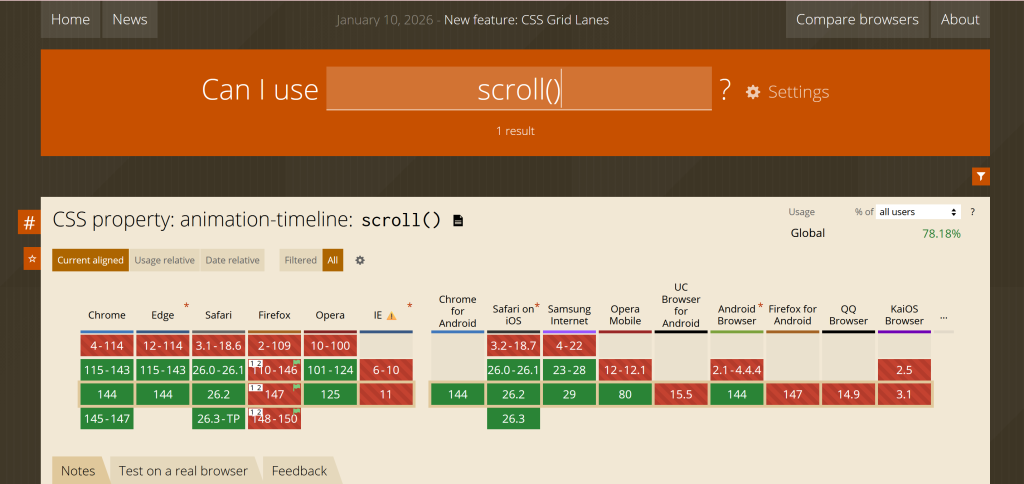
The scroll() function only started to roll out in 2023 so is still a fairly new feature. Although it is widely supported now, it is still considered experimental within Firefox. We can manually enable it within Firefox by going to our configuration settings and setting layout.css.scroll-driven-animations.enabled to true. It’s worth setting this up if you will be testing it in Firefox.

It is important to keep in mind that there will still be many users who will not see our scroll-driven animations, so we must design for them as well.
